jdbc
To start of the tutorial, JDBC, which stands for Java Database Connectivity, is a standard Java API for database-independent connectivity between Java and a wide range of databases. For our purposes, we will be utilizing JDBC with connectivity to SQL.
In order to use JDBC effectively, you must have the following installed:
-
CORE Java Programming, refer to the previous tutorial for further instructions: https://github.com/CourseReps/ECEN489-Spring2016/wiki/java, https://github.com/CourseReps/ECEN489-Spring2016/wiki/intellij
-
SQLite, refer to the previous tutorial for further instructions: https://github.com/CourseReps/ECEN489-Spring2016/wiki/sqlite
The JDBC API uses a driver manager and database-specific drivers to provide transparent connectivity to heterogeneous databases. What the device manager does is ensure that the correct driver is used to access each data source. Below is a hierarchy of the architectural diagram show at the high level the Java application all the way to drivers and the specific databases (Figure 1).
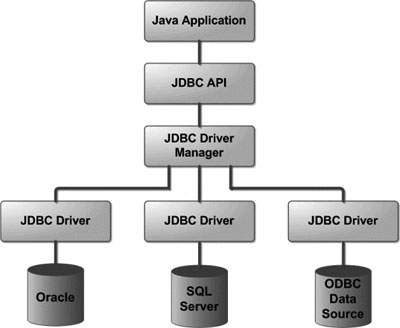
Common JDBC Components
-
DriverManager : This class manages a list of database drivers. Matches connection requests from the java application with the proper database driver using communication sub protocol. The first driver that recognizes a certain subprotocol under JDBC will be used to establish a database Connection.
-
Driver: This interface handles the communications with the database server. You will interact directly with Driver objects very rarely. Instead, you use DriverManager objects, which manages objects of this type. It also abstracts the details associated with working with Driver objects.
-
Connection: This interface with all methods for contacting a database. The connection object represents communication context, i.e., all communication with database is through connection object only.
-
Statement: You use objects created from this interface to submit the SQL statements to the database. Some derived interfaces accept parameters in addition to executing stored procedures.
-
ResultSet: These objects hold data retrieved from a database after you execute an SQL query using Statement objects. It acts as an iterator to allow you to move through its data.
-
SQLException: This class handles any errors that occur in a database application.
Six steps occur when creating a JDBC application: Import the packages, Register the JDBC driver, Open a connection, Execute a query, Extract data from result set, Clean up the environment.
The sample seen below can serve as a template when you need to create your own JDBC application in the future.
-
Make sure to download the latest version of sqlite-jdbc-(VERSION).jar from the sqlite-jdbc repository and select sqlite-jdbc-3.8.11.2.jar : https://bitbucket.org/xerial/sqlite-jdbc/downloads
-
Copy and paste the following example as SQLiteJDBC.java, and make sure the SQLite JDBC .jar file is in your class path.
import java.sql.*;

public class SQLiteJDBC
{
  public static void main( String args[] )
  {
    Connection c = null;
    try {
      Class.forName("org.sqlite.JDBC");
      c = DriverManager.getConnection("jdbc:sqlite:test.db");
    } catch ( Exception e ) {
      System.err.println( e.getClass().getName() + ": " + e.getMessage() );
      System.exit(0);
    }
    System.out.println("Opened database successfully");
  }
}
Once you save the .java file, open your Command prompt and enter the following as seen below to access and run the .java file and the JDBC driver .jar file.
Below is how to enter the information in a command prompt:
$javac SQLiteJDBC.java
$java -classpath ".:sqlite-jdbc-3.8.11.2.jar" SQLiteJDBC
If you are running Windows then below is how to access SQLiteJDBC via command prompt:
$javac SQLiteJDBC.java
$java -classpath ".;sqlite-jdbc-3.7.2.jar" SQLiteJDBC
The result should read Opened database successfully.
Once you reach this point, you have successfully connected java to your SQLite database!
Below are some good resourceful websites on JDBC:
- http://www.tutorialspoint.com/sqlite/sqlite_java.htm
- http://www.tutorialspoint.com/jdbc/jdbc-sample-code.htm
- https://docs.oracle.com/javase/tutorial/jdbc/basics/
To add external .jar files to IntelliJ IDEA, refer to this link: https://stackoverflow.com/questions/1051640/correct-way-to-add-external-jars-lib-jar-to-an-intellij-idea-project